
Getting Started
Quick Start
Start SkyPort locally or on a VPS and verify the main workflows.
This guide assumes you already installed skyport and built or downloaded the backend server binary.
Start the web UI
terminal
skyport start webui
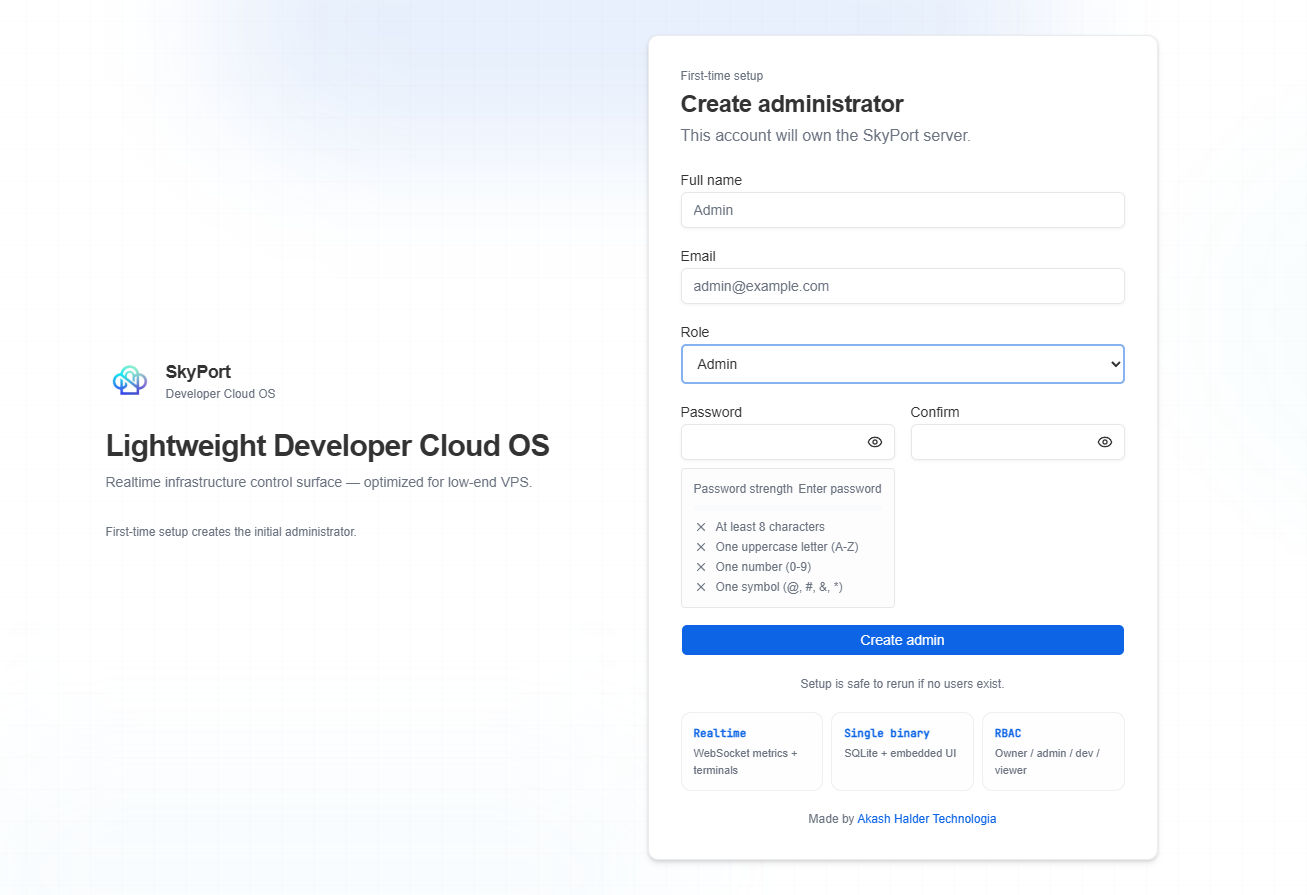
The command checks whether the embedded web UI is already healthy, starts the backend binary if needed, and opens the browser by default.
Expected results
terminal
#Either(If backend Server is NOT RUNNING):
skyport start webui
🟦 Starting SkyPort web UI (0s)2026/05/16 21:44:49 run: database: create db directory: mkdir data: Access is denied.
🟦 Starting SkyPort web UI (11s)

# START BACKEND SERVER FIRST

# OR(If backend Server is running)
✅ SkyPort web UI is already running at http://localhost:8080
Open the TUI
terminal
skyport start tui
The TUI requires an active server profile. If you do not have one yet, add it first.
terminal
skyport server add --name local --url http://localhost:8080
skyport server list
Sign in
terminal
skyport login
You can also provide --email and --password flags for non-interactive use.
Check the first control surface
Run a few read-only commands to confirm the platform is wired correctly:
terminal
skyport whoami
skyport status
skyport docker ps
skyport pm2 list
Add a project
Use a local project directory or Git URL.
terminal
skyport project pull https://github.com/example/app.git --name app
skyport project list
Create a deployment
The deploy command creates a deployment record for a project and accepts runtime settings.
terminal
skyport deploy \
  --project-path ./app \
  --start-cmd "npm run start" \
  --build-cmd "npm run build" \
  --env NODE_ENV=production
Open logs
terminal
skyport logs <deployment-id>
Troubleshooting
The browser does not open
- Pass
--browser=falseand open the printed URL manually. - Check whether another process already uses the selected port.
The TUI says no active server profile
- Add a profile with
skyport server add. - Use
skyport --server <name> start tuiif you have multiple environments.
Docker commands fail
- Confirm Docker is installed and the daemon is running.
- On Linux, make sure your user can access the Docker socket.
Next: First Deployment