CLI

CLI Installation

Install and configure the SkyPort CLI

SkyPort CLI Installation

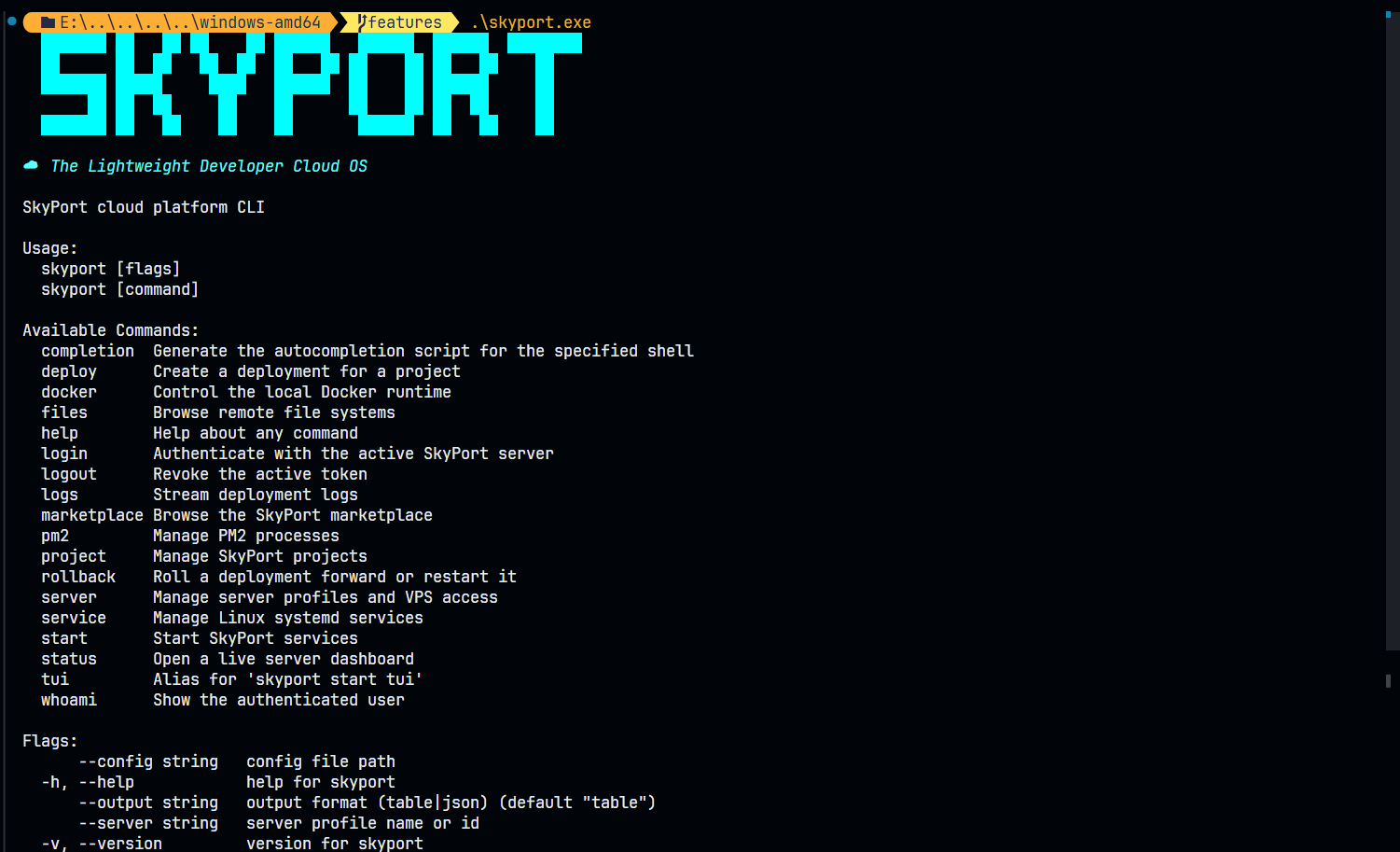
The SkyPort CLI is the primary interface for managing your infrastructure. It's a lightweight, single binary that can be used for automation, scripting, and day-to-day operations.

Installation

SkyPort CLI is included with the main SkyPort installation. To verify it's installed:

skyport --version

Authentication

Before using the CLI against a remote SkyPort instance, you need to authenticate.

Local Authentication

When connecting to a SkyPort server on your local machine, authentication is automatic.

Remote Authentication

For remote servers:

# Login to a remote SkyPort instance
skyport auth login --server https://skyport.example.com

# You'll be prompted for credentials
# This saves credentials securely to ~/.skyport/config.yaml

Using API Tokens

For automated scripts and CI/CD:

# Export token as environment variable
export SKYPORT_TOKEN="your-api-token"

# Or use in commands
skyport --token "your-api-token" docker ps

Configuration

SkyPort CLI stores configuration in ~/.skyport/:

~/.skyport/
├── config.yaml          # Main configuration
├── tokens.json          # Saved authentication tokens
├── logs/                # Application logs
├── cache/               # Cached data
└── workspace/           # Workspace configuration

Configuration File

Example ~/.skyport/config.yaml:

servers:
  - name: "production"
    url: "https://skyport.prod.example.com"
    token: "sk_token_xxx"
    default: true
  - name: "staging"
    url: "https://skyport.staging.example.com"
    token: "sk_token_yyy"

preferences:
  output_format: "table"  # or json, yaml
  color: true
  verbose: false

Usage

Basic Syntax

skyport [command] [subcommand] [options]

Global Options

# Set verbosity
skyport -v docker ps          # verbose
skyport -vv docker ps         # very verbose

# Change output format
skyport --format json docker ps
skyport --format yaml docker ps

# Use specific server
skyport --server production docker ps

# Disable color output
skyport --no-color docker ps

Common Commands

Help System

# View all commands
skyport help

# Get help for a command
skyport docker help

# Get help for a subcommand
skyport docker ps help

# Search for commands
skyport help search keyword

Server Management

# Check server status
skyport status

# View system information
skyport system info

# View resource metrics
skyport metrics

# View service logs
skyport logs service-name -f

Docker Commands

# List containers
skyport docker ps

# Run a container
skyport docker run -d nginx:latest

# View logs
skyport docker logs container-name -f

# Stop container
skyport docker stop container-name

PM2 Commands

# List processes
skyport pm2 list

# Start an application
skyport pm2 start app.js --name "my-app"

# View logs
skyport pm2 logs my-app -f

# Restart application
skyport pm2 restart my-app

Aliases

Create command aliases for frequently used operations:

# Add alias to ~/.skyport/config.yaml
aliases:
  prod-status: "skyport --server production status"
  prod-logs: "skyport --server production logs"
  dev-docker: "skyport --server development docker"

Then use them:

skyport prod-status
skyport prod-logs app-name
skyport dev-docker ps

Shell Completion

Enable autocomplete for your shell:

Bash

# Add to ~/.bashrc
eval "$(skyport completion bash)"

# Or source the completion file
source <(skyport completion bash)

Zsh

# Add to ~/.zshrc
eval "$(skyport completion zsh)"

# Add to fpath
fpath=(~/.skyport/completions/zsh $fpath)

PowerShell

# Add to $PROFILE
skyport completion powershell | Out-String | Invoke-Expression

Scripting

Example: Backup All Volumes

#!/bin/bash

BACKUP_DIR="/backups/$(date +%Y%m%d)"
mkdir -p "$BACKUP_DIR"

# Get all volumes
skyport docker volume ls --format json | jq -r '.[] | .name' | while read volume; do
  echo "Backing up volume: $volume"
  skyport docker volume backup "$volume" --destination "$BACKUP_DIR/$volume.tar.gz"
done

echo "Backup complete!"

Example: Monitor Application

#!/bin/bash

APP_NAME="my-app"

while true; do
  STATUS=$(skyport docker inspect "$APP_NAME" --format json | jq -r '.State.Status')
  
  if [ "$STATUS" != "running" ]; then
    echo "WARNING: $APP_NAME is not running! Status: $STATUS"
    # Send alert
    notify-send "SkyPort Alert" "$APP_NAME is down"
  fi
  
  sleep 60
done

Example: Automated Deployment

#!/bin/bash

# Pull latest changes
git pull origin main

# Build new image
docker build -t my-app:latest .

# Stop old container
skyport docker stop my-app

# Remove old container
skyport docker rm my-app

# Run new container
skyport docker run -d \
  --name my-app \
  -p 3000:3000 \
  my-app:latest

echo "Deployment complete!"

Troubleshooting

"Command not found"

Ensure SkyPort is in your PATH:

which skyport
echo $PATH

"Connection refused"

Verify SkyPort server is running:

skyport status
# or
curl http://localhost:8080/health

"Unauthorized"

Check your authentication:

skyport auth login
# or set SKYPORT_TOKEN environment variable

Next: CLI Commands Reference | CLI Reference

SkyPort

SkyPort Docs

Self-hosted infrastructure platform